HelpYour newsletter
Newsletter settings
Name, sender, website, signups and the emails new subscribers get.
More than one newsletter
An account has up to 3 newsletters. Add one from the newsletter menu at the top of the sidebar, where you also switch between them: the dashboard shows one newsletter at a time. They share your plan's emails and subscribers. Each has its own contacts, campaigns, sender and website.
Settings opens on an overview of the newsletter: a card for each section below, with where it stands, like double opt-in on or the website's address. A card opens its section's page, like Settings / General, whose back arrow returns to the overview. Once you change something there, a bar offers to save or discard it.

General
- Name: shown in emails and on your website.
- Slug: lowercase letters, digits and dashes. Your website's address follows it. A few names like www, api or mail are kept by Wabimail. An account changes slugs 3 times a day at most, and the slug field says how many are left.
- Image: a square logo, 128×128 pixels or larger, for your website and the pictures it shows when shared.
Sender
- From name: the name in your readers' inbox.
- From email: an address at a domain you added on the Domains page. Sender addresses and domains
- Author: your newsletter's default author, the one each new issue starts with. Replies to an issue go to its author, and replies to your welcome, confirmation and last-chance emails go to the default author. Pick another, add one or edit them from its menu. Until you add one, replies go to the reply-to address you set before authors.
- Postal address: printed in the footer of every email, as anti-spam laws ask. Until you set yours, emails print Wabimail's business address. Saved empty, emails wait until you add one.
Website
Each newsletter has a public website with a page for each issue and a signup form. It's on for new newsletters and goes live after your first issue. On the Website page, you set its description (one sentence under the name and in the subscribe popup), your author bio and photo, your social links and the analytics tools it loads. Website and signups
Confirm new signups
With confirmed opt-in, people who sign up get an email with a button, and only join your list once they click it. Until then they're pending and get nothing else. It's on for new newsletters, and it keeps typos and fake signups out of your list.
The built-in confirmation email follows your newsletter's name and description. On the Confirm signups page, you can write your own subject, preview text and content, in your words or your readers' language, in the same editor as your issues. Keep its button: each new subscriber gets their own link in it, and its toolbar says Confirms their subscription. If it's gone, Add the button brings it back, and Use the built-in email goes back to Wabimail's. Preview shows it as they get it. Like issues, it goes through the content check: while it's in review, new subscribers get the built-in one.
New subscribers get the confirmation email or your welcome email, not both. Turning on double opt-in while the welcome email is on turns the welcome email off when you save, and the page says so first. From the API or an AI assistant, send both changes in the same request.
Confirmation emails count toward your plan's emails, and still go out once the month's emails are used up. What counts as an email
Welcome email
An email each new subscriber gets when they join, written in the same editor as your issues, with pictures, buttons and their first name. On the Welcome email page, Preview shows it as they get it and Send test sends the saved version to you or the addresses you type, read as one of your contacts if you pick one, like an issue's test. While double opt-in is on, new subscribers get the confirmation email instead: turning the welcome email on turns double opt-in off when you save, and the page says so first. Like issues, it goes through the content check: while it's in review, new subscribers don't get it.

Welcome emails count toward your plan's emails. Once the month's emails are used up, they pause until your emails reset or you upgrade, and people who join meanwhile don't get one later.
List cleanup
When an issue goes out, contacts who ignored several issues in a row and showed no sign of life for months get one last-chance email instead. It's on for new newsletters, after 6 ignored issues and 180 quiet days: on the List cleanup page, you can pick 2 to 100 issues and 30 to 3650 days, and write your own last-chance email, like the confirmation email. The last-chance email
Form for your site
A signup form to paste on your own site, off until you turn it on. On its page, you preview it, set its button and placeholder, copy its code or a prompt for your AI agent, and list the sites it works on. A signup form on your own site

Design
Your newsletter's theme: the fonts, colors, corners, shadows and spacing of its website and its emails. Pick one on the Design page, then change it as you like. Design and themes
Team
Invite up to 5 people to work on the newsletter with you, as admins or members, from its Team page. Each newsletter has its own team, and only you, the account's owner, see that page. Team members
Notifications
What Wabimail emails you about the newsletter, set on its Notifications page. With a paid plan, that's a summary of its numbers every Monday at 8 AM, your time: who joined and who left against the week before, your total, new subscribers over the last 8 weeks, and your latest issue's opens and clicks against your average, with its most clicked link.
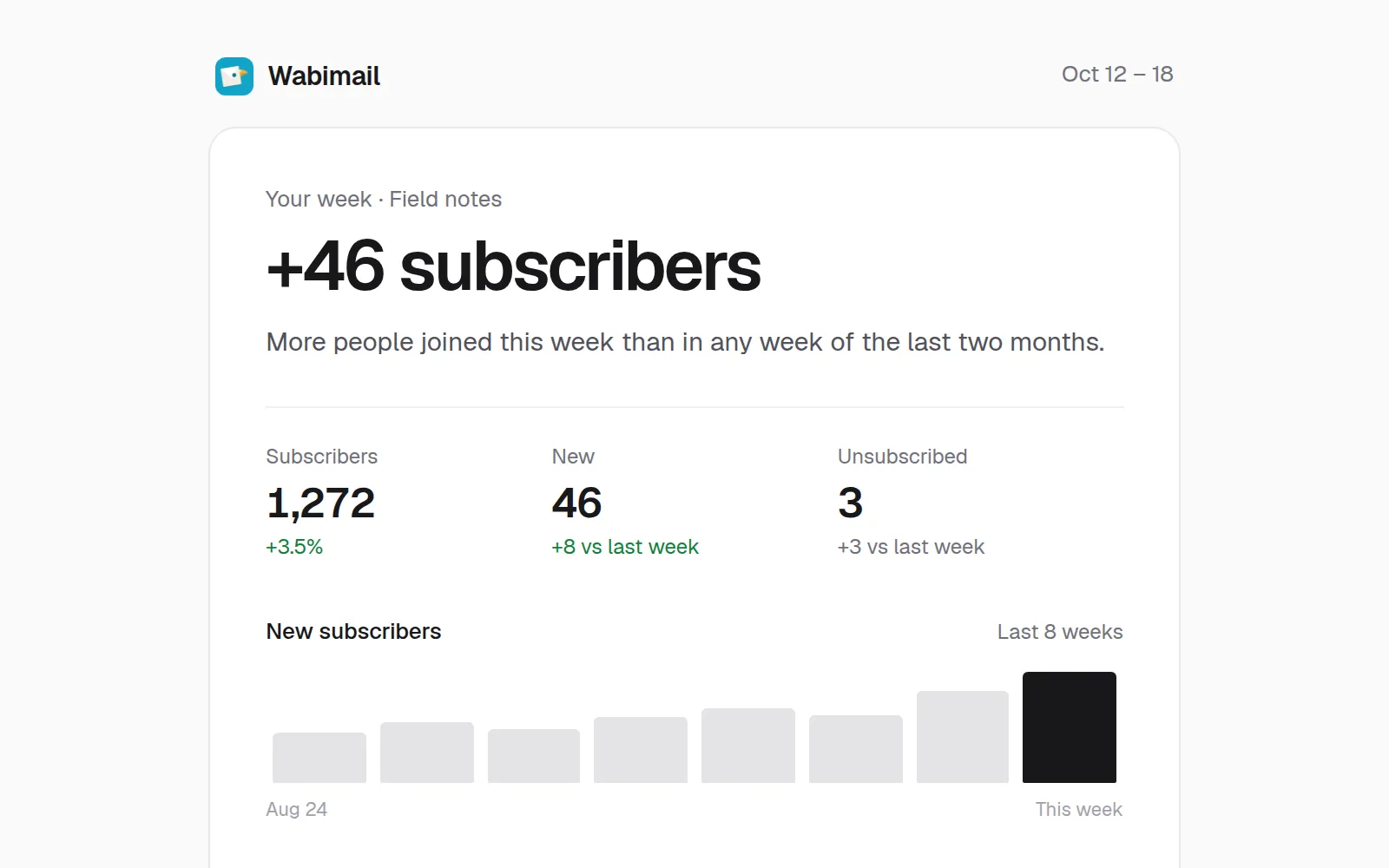
Each newsletter has its own summary: pick Weekly, Daily for yesterday's numbers every morning, which skips the days with no news, or Off. Preview there shows the next one, and Sent to shows where it goes: the address you sign in with. The link at the bottom of each summary changes it without signing in, and your mail app's Unsubscribe button turns it off in one click. "Your time" is your browser's, the last time you opened the dashboard. Summaries don't count toward your plan's emails.
Share this week opens a page with your newsletter's name and its own totals, never a subscriber, to post on X or LinkedIn. Get a summary in the API returns the same numbers.
Getting Wabimail's emails in your inbox
Wabimail only emails you about your account, like a campaign that needs you or your summary, never for marketing. To keep those out of spam, once you have a plan and your newsletter's get-started list is closed or done, a card at the bottom right of the dashboard sends you an email from Wabimail: reply to it with anything, and your mail app files Wabimail's next emails in your inbox. If it lands in spam, mark it as not spam too.
It goes to your account's address, 3 times a day at most. Closing the card, or Done once you've replied, hides it for that newsletter, on every device.